¶ Introduction
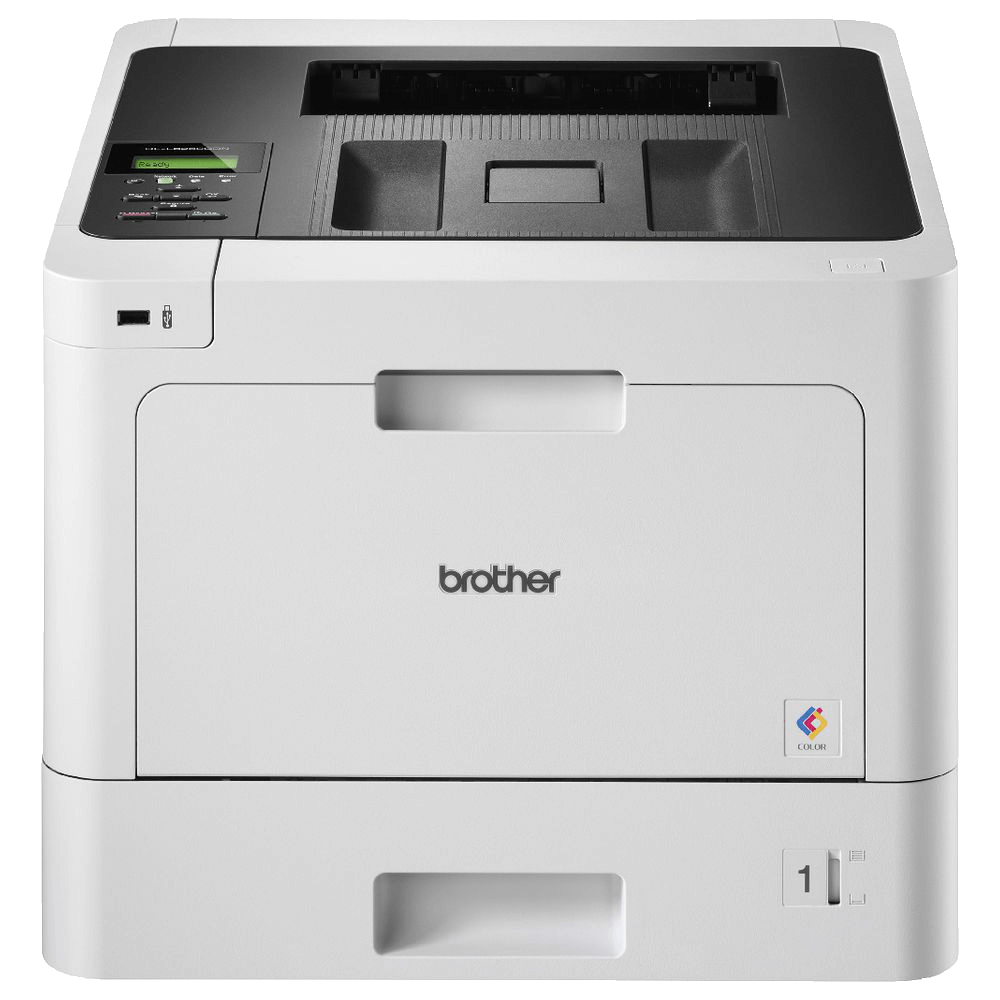
You are welcome to use our (2D) printers for printing small amounts of documents, photos, etc. related to the project you're working on. We monitor and log print jobs to ensure that no one is abusing the printers. We have both a laser printer and an inkjet printer. We recommend that you use the laser printer unless you have a specific need for the inkjet (such as printing high resolution photos).
¶ How to use
On Apple devices (including macOS, iOS and iPadOS) simply select "Brisbane Makerspace Printer" or "Brisbane Makerspace Inkjet" from the list of available printers. If you want to print from your iPhone or iPad, you can normally click "share" and then select print instead of sharing to another app.
On Android and Windows computers, you may have to manually add our printer if it doesn't automatically show up. It should be available on the network as "BrisbaneMakerspacePrinter" or "BrisbaneMakerspaceInkjet" (or something similar). This process differs depending on your device and operating system.
¶ Getting Started
¶ InkJet Printer
Ask Jaymin before use.
¶ Laser Printer
Before you can use the printer, you'll need to download the drivers. While Mac and Windows has a basic set of drivers, you may not be able to use them.
First, you can download the drivers for the printer. We recommend downloading the quick-start app.
When setting up, do not accept auto-updates for firmware, and decline all data optional data collection.
Note: If for whatever reason your computer is not finding the printer, make sure you're connected to the Wi-Fi. Otherwise, search for 192.168.1.147. It is also called "BMSPrinterAndScanner".
¶ Counterfeit Notice
If you see a warning about a used or counterfeit toner, please ignore it.

¶ Troubleshooting
If you are having trouble printing, first check that you're connected to our WiFi or try restarting your device. If you're still having trouble, book an appointment with staff and we can get you setup.
¶ Specifications
Induction Class: 🟢 Green Tool (No Induction Required)
Colour: Full Colour
Size: A3, A4
Double Sided Printing: Yes
Model: HP Color LaserJet Pro MFP M479fdw (Laser) and Canon <model unknown> (Inkjet)