¶ How to create an induction in BMS Learn (Moodle)
We are in the process of migrating to a new induction platform. This guide is out of date and should be updated once that is complete. Please ask on Discord for assistance.
BMS Learn is our inductions platform - which is just the name of our Moodle instance. All of our tools that carry reasonable levels of risk require induction. When setting up a new tool that's been acquired, an induction is required before members can use it. Follow the guide below to create a new tool in moodle so that members can learn how to use it.
You can find a list of all Moodle courses here.
¶ 1. Get the right permissions
Before you can do anything in this guide, you need the right permissions. We use single sign on which means you already have an account, just tap here to login using the member portal.
After you've logged in at least once, please reach out to someone on the infrastructure team or committee to adjust your permissions. We'll need to assign a role that allows you to create and edit Moodle courses. Note for admins: that page is right here.
¶ 2. Create a new course
Each induction is called a course in Moodle. To do create a new one, follow the steps below.
-
Create a new course by tapping the correct link below (or right click and open in new tab):
- Non Working Group Induction
- Digifab Induction
- Woodshop Induction
- Otherwise tap here, select the correct category, then under "More" select "Add a new course".
- If the correct category doesn't exist yet (such as for a recently formed working group) please ask in the #safety-and-inductions discord channel. Note to admins: create a new category here.
-
Update the "General" course settings like in the screenshot below. Fill in the two course name fields, select the correct category and make sure the course end date is NOT ENABLED. Please use the format "TOOL_NAME Induction" for the name and description.
Note to admins: the "Course ID number" field is how Member Matters synchronises course completion data. Copy the value from the manage interlock / door page. (coming soon - ignore for now)
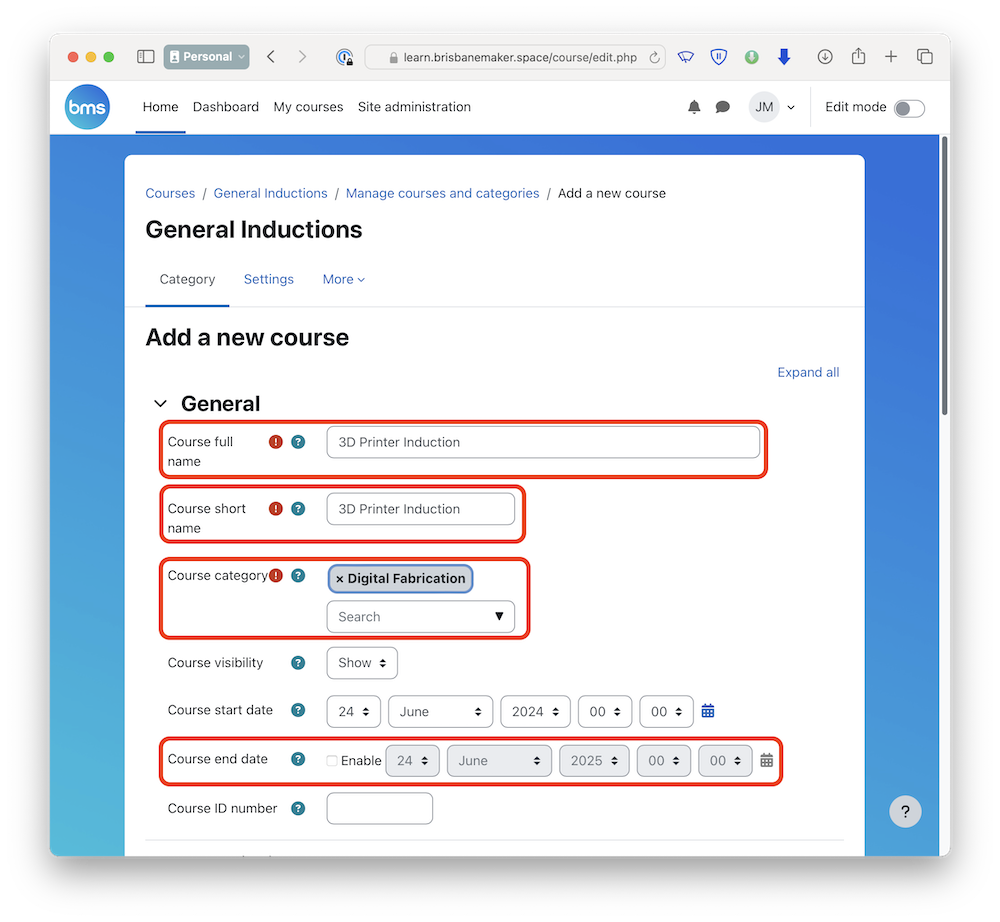
-
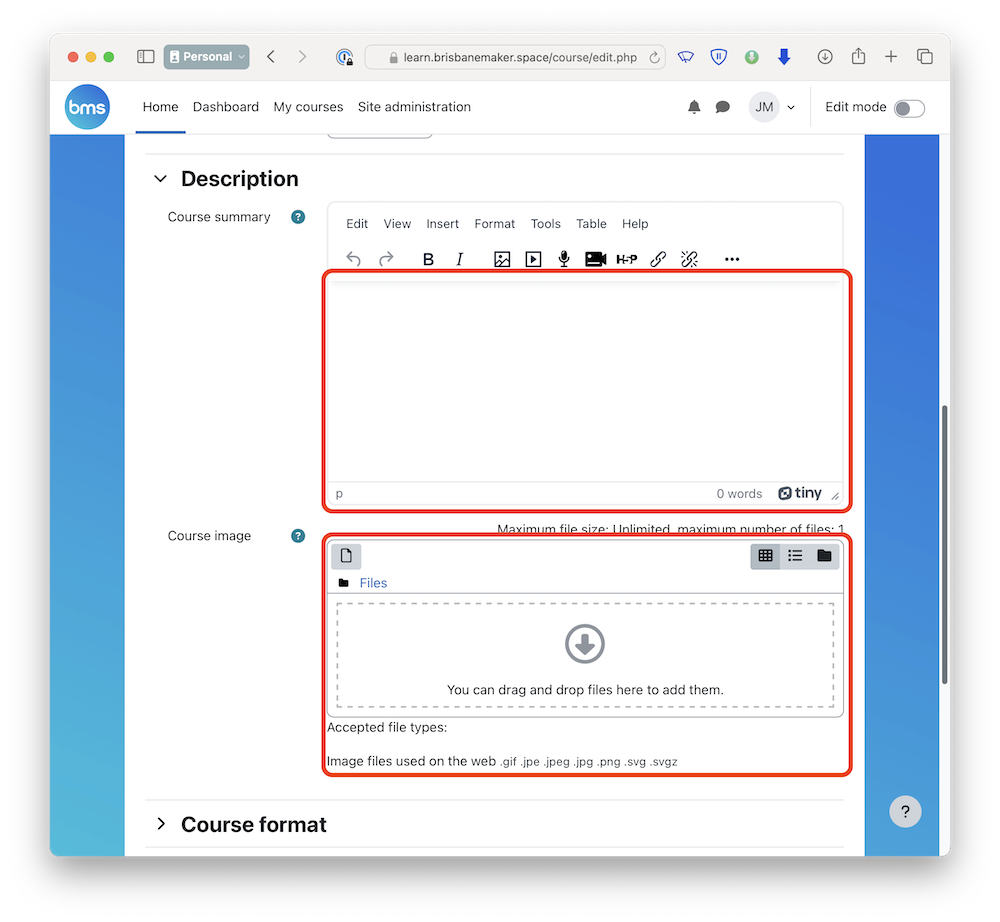
Scroll down and add a short description and a cover image using this canva template. Include an indicated time to complete. A good example is below.
This laser cutter induction will teach you the basics of safely using our laser cutter. This induction will take around 40-60 minutes.
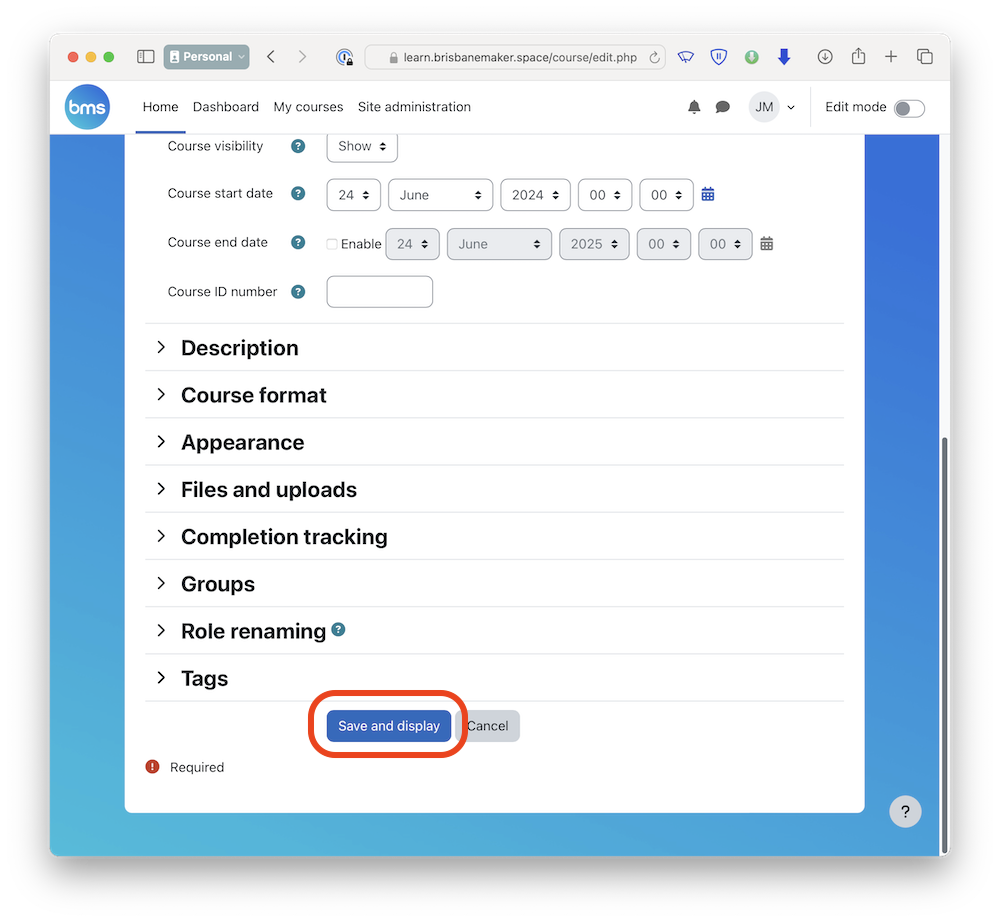
4. Scroll down and tap "Save and display" to continue.
¶ 3. Start adding the course content
Now that we've created the course, we need to add the content! All courses need to be signed off by the head maker to check for consistency before it can go live - but feel free to test it out on a few people for feedback.
- Start by creating a list of all topics you want included in your course. Courses should be split up into sections that take no longer than 10 minutes each where possible. Aim to have any written or video content broken up into approximately 5 minute sections followed by a short quiz to check understanding.
- Courses should be split up into sections that take no longer than about 10 minutes each where possible. Aim to have any written or video content broken up into approximately 5 minute sections followed by a short quiz to check understanding.
- After following the above steps your course should already be open, but if you've lost it - you can find a list of all courses here.
Make sure you have turned on edit mode in the top right hand corner or you won't be able to make changes.
- You may have a few empty topics by default, feel free to edit these, or delete them all and start fresh. Once you've got the list of topics you want to include in your course, tap "Add an activity or resource" to start adding content. It's a good idea to put a short introduction about what this course will cover inside a "Text and media area" resource under the very first topic.
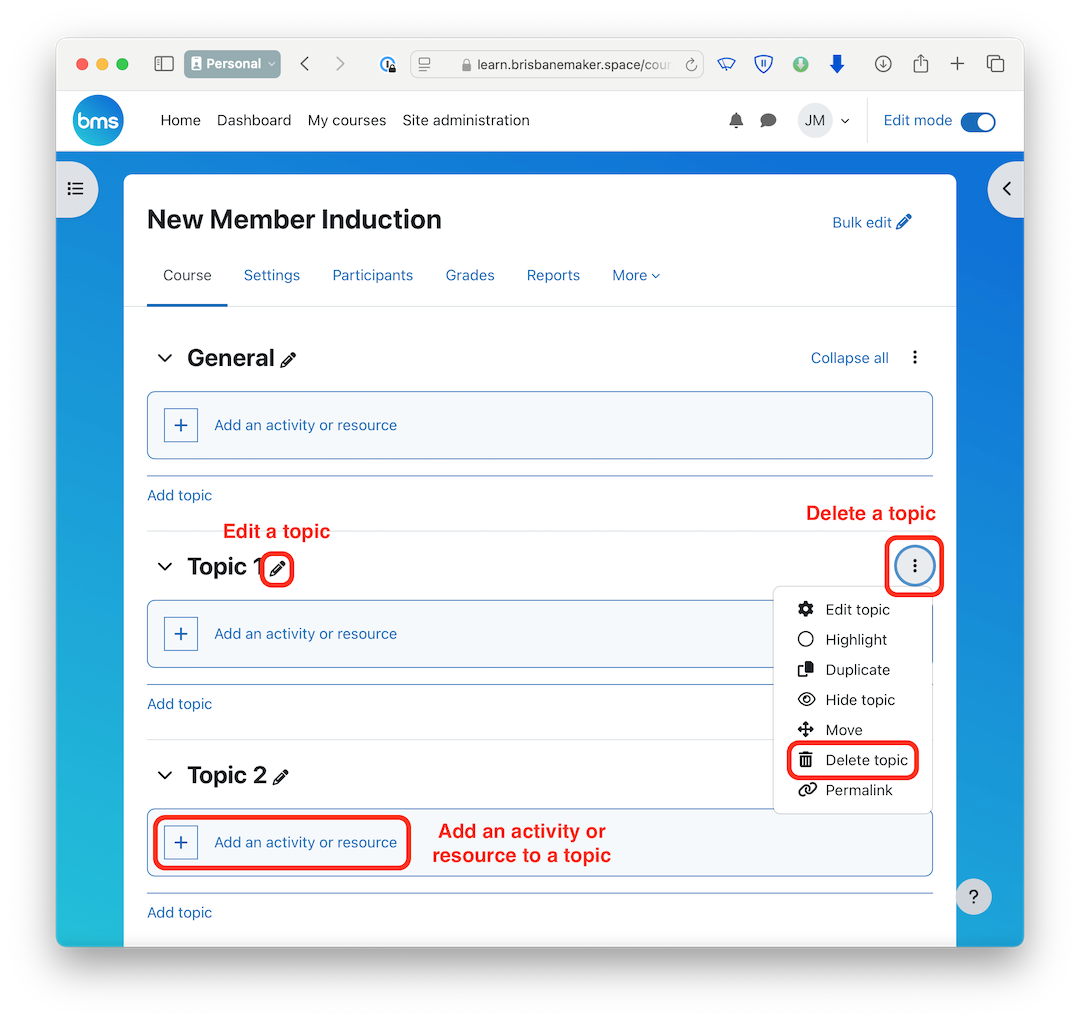
- Once you've tapped "Add an activity or resource" under a topic, you're presented with a few options. We recommend using a "Text and media area" followed by a "Quiz" for each topic in your induction course. You can embed a video (either external or one you filmed and uploaded to the BMS YouTube account) or put text and images directly into it. For topics with lots of content, you should use a "Page" resource instead of a "Text and media area",
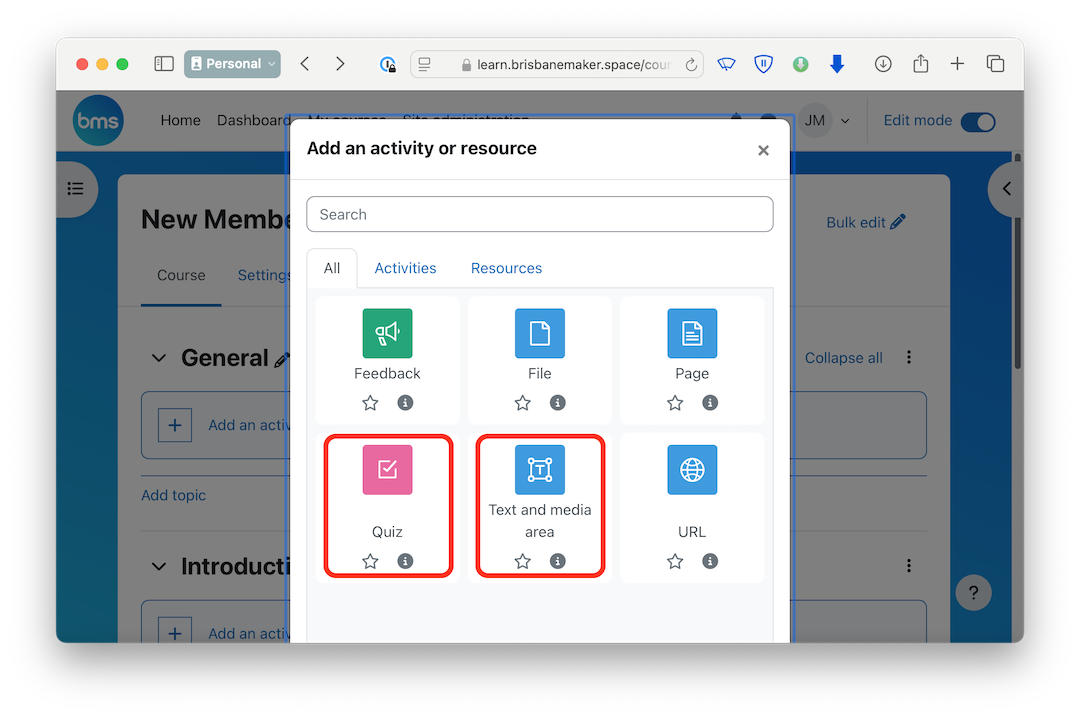
If you're a moodle expert and see something missing that you want to use, drop a message in the #safety-and-inductions channel on Discord. We've disabled most of them by default to make it less confusing.
- If a member has to watch a video or read the content in the "Text and media area", you should explicitly write this. A good example is below.
Please watch the video below and then continue to the quiz.
-
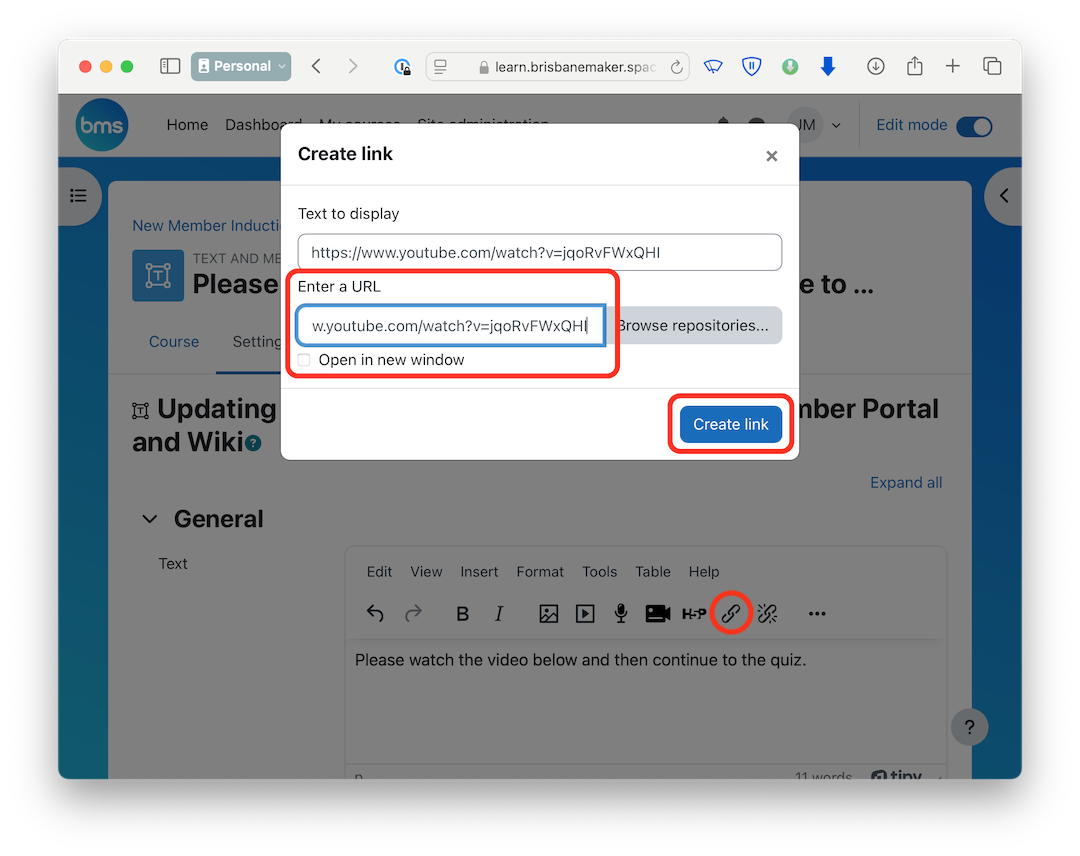
To embed a YouTube video (note: all BMS produced videos should be uploaded to our YouTube account) tap the URL icon pictued below. Then enter the URL into "Enter a URL" and tap "Create link" to save it. Once you save this topic and go back to the course view (next step), you'll see the link turn into the proper embeded YouTube video. Feel free to add multiple videos to a topic, but put them in separate "Text and media area" resources.
-
Once you've finished adding content to all of your topics, don't forget to save your course. In fact, you should do this everytime you make a major change so you don't lose any work.
¶ 4. Start adding the course quizzes
All BMS inductions should have quizzes in order to check someone has actually completed the content. Question phrasing is a whole topic by itself, but try to follow these guidelines:
- Don't use "gotcha" questions based on phrasing or exact numbers - unless that phrasing/precision is critical to safety or understanding. e.g. both "lense focal point" and "lens focus point" or "pi is 3.142" and "pi is 3.14" are correct answers - don't mark one as incorrect.
- Use a mixture of multiple choice, true/false and other types of questions to break things up.
- Stick to a max of 10 quiz questions per topic - if you need to use more, break up the module into smaller topics.
- The aim of the quiz is to check if they (a) absorbed most of the content and (b) understand most of the content. No-one is perfect and you shouldn't expect anyone to always get 100%.
This guide is incomplete, so we recommend watching this tutorial until there's more information here: https://www.youtube.com/watch?v=7lm-_8-UOFg
¶ Quiz Marking/Activity Completion Settings
As above, the aim of a quiz is to check if they (a) absorbed most of the content and (b) understand most of the content. No-one is perfect and you shouldn't expect anyone to always get 100%. You should generally leave all the default settings alone unless someone or an instruction on this wiki page has instructed you to change it.
Change the "Grade" settings as follows:
- Set "Grade to pass" to 8 (by default moodle sets the maximum grade to out of 10 - change this if you have less than 10 questions)
- Set 'Attempts allowed" to "Unlimited"
Change the "Activity completion" settings as follows:
- Completion tracking -> "Show activity as complete when conditions are met"
- Require view -> Select "Student must view this activity to complete it"
- Require grade -> Select "Student must receive a grade to complete this activity"
- Require grade -> Select "Student must receive a passing grade to complete this activity"
¶ Add the quiz questions
Once you've changed the settings as above, tap on "Save and display" then tap on the "Questions" tab at the top. This is where you can add questions to the question bank for this quiz. It's fairly self explanatory, but please ask in
¶ Attestation / Agreements
An "attestation" is an agreement that must be agreed to, to pass an induction.
If necessary, this should be included in the final topic with a quiz. This might be something like "I agree to never leave the laser cutter running while stepping outside the inclusion zone or I will have my laser cutter access removed". It should only include tool specific agreements, not general things like "I will operate this tool safely". To create one of these, just use a multiple choice quiz question, mark it as mandatory, and only add a single answer "yes I agree" or similar.